
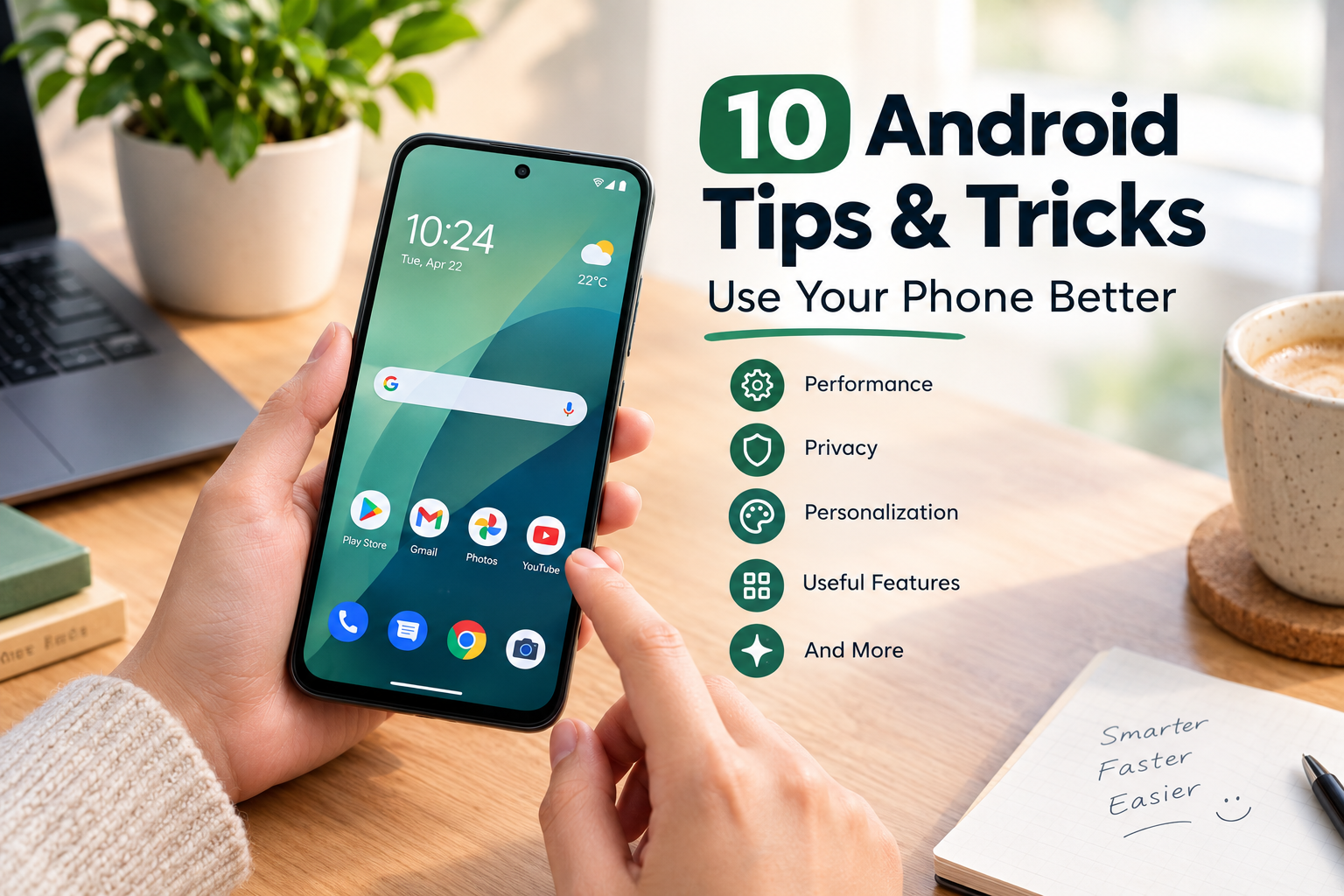
You’ve had an Android phone for years. Maybe a decade. And yet, chances are there’s a settings menu buried three taps deep that you’ve never opened, a gesture you’ve never tried, and a feature that would’ve saved you actual hours if you’d known it existed sooner. Android is deeper than you think- it might not be that complex, but with right tricks you will get to the point where you want to be.
So, here are some tricks to understand your Android and make your life a little easier. Whether you are using a Samsung or Pixel, these tricks will help you when you need it.
1. Unlock developer option
Yes, even if you are not a developer, your Android provides you with the developer option. Don’t be worry about this option, it’s not just for the coders and can be accessed by anyone. Two toggles inside are genuinely useful for everyone:
Animation scale: Drop this to 0.5x and your phone will feel noticeably faster, even though nothing about the actual hardware changed. Sounds like a magic trick, right?
Force higher refresh rates: If your phone supports 90Hz or 120Hz but sometimes downgrades to save battery, you can lock it in for smoother scrolling.
You can apply the developer option from your settings. Open your setting page> open “my phone” or “about phone” and look for “build number”. Found it? Now, tap that number 7 times, and your phone will tell you that you have unlocked the “developer option”.
Just don’t go poking at settings you don’t recognize in there, most of it is genuinely harmless, but a few toggles are meant for actual app testing.
2. Customize Your Quick Settings Panel
Swipe down twice from the top of your screen and you’ll see your Quick Settings tiles — Wi-Fi, Bluetooth, flashlight, the usual suspects. Most people never touch the layout. Tap on the edit icon, in some phone the icon should be three dots, or a pencil icon. After clicking on it, you will quick edit switch, tapping on that you can rearrange tiles around.
Not just that you can also add the tiles by holding and dragging the switch you want to add into the existing one. Super fun right? With this you will have quick shortcuts sitting on the top of your phone’s head.
3. Bring back notification history.
Swiped off an important notification by mistake? Worry not, with few quick settings you can make sure to bring the dismissed notification back. Go to Settings > Notifications > Notification history and turn it on. From this, you can even see dismissed notification that you have swiped off and every swiped off notification.
But then you can also turn it off when it starts to annoy you, since not every notification is important one. Make sure to check your device settings, maybe names will be different, but it is given to every Android phone nonetheless.
4. Use Split Screen Like You Mean It
Multitasking on a phone always felt like a gimmick until you actually try it properly. Open your recent apps view, tap an app’s icon at the top, and choose “Split screen.” Now you’ve got two apps side by side — perfect for replying to a message while checking a map, or taking notes while watching a tutorial. On newer Android versions this has gotten smoother, with better drag-and-drop support between the two panes.
This setting will be useful for those who do heavy tasking on their phone, may it be managing meetings and chats together, or watching a video and taking the notes. This setting comes so handy when you need multitasking instead of going through background pages one by one.
5. Try predictive back gesture.
A quick definition- Predictive back gestures are the Android features that shows a live preview of the screen you will return to as you swipe back, helping you decide whether to complete or cancel the action. It’s subtle, but it eliminates that mild panic of accidentally backing out of an app entirely when you just wanted to close a menu. If you don’t see it yet, check Settings > System > Gestures — some phones still have it as a toggle rather than a default.
This feature is available on Android 13 onwards, so if you are using an older Android, this feature might not be in your phone.
6. Set up a private, locked-down space
Most people just… don’t organize their apps by sensitivity, which is a little wild when you think about how much personal stuff lives on a phone. Android’s private space (sometimes called a vault or secure folder depending on your device) lets you tuck away specific apps like banking apps, personal photos, whatever, behind a separate lock.
It won’t show up in your regular app drawer or recent apps list unless you unlock it specifically. You should look for Settings > Security & privacy > Private space to set it up.
7. Scan QR code without an App
You will be astonished to know that yes, you can scan any QR code without an app with your new Android version phones. If you’re still downloading random third-party QR scanner apps, stop. Your camera app can already do it. Just point your camera at a QR code, and a notification or on-screen prompt will pop up to open the link — no extra app, no extra permissions handed out to something you’ll delete in a week anyway.
In some phones, there is a separate toggle for you to access QR code scanner directly. It is available on quick setting panel, and when you tap on the icon, it will take you straight to the camera powered to scan QR codes.
8. Let Gboard do the heavy lifting
Your keyboard is doing more than you think. Optimize your Gboard to do your heavy tasks, especially now that it is powered by AI. The AI features can rewrite your message to sound more formal and cleaner before you send it away. It comes quite handy when you are writing in frustration or want tone down your wordings before hitting send.
Look for the little icon above the keyboard when you’re composing a message; if it’s not showing up, check that Gboard is updated to the latest version from the Play Store.
9. Use Guest mode before handing over your phone
Ever given your phone to a kid, and got it back with half of your images deleted, random games downloaded? It’s quite frustrating, so here’s the quick setting to avoid that situation. Swipe down to Quick Settings, tap your profile icon (or find it under Settings > System > Multiple users), and switch to Guest mode. It gives them a clean, separate space with none of your personal data, and you can wipe it in one tap when you get your phone back.
But careful, this might not be available in many Android phones, instead you use app lock so it be accessed unnecessarily by anyone.
10. Use the clipboard more efficiently
If you frequently copy and paste text, check whether your keyboard has a clipboard feature.
Many popular Android keyboards allow you to see recently copied text and pin frequently used items. This can be useful when you’re repeatedly entering an email address, phone number, address, or other information. Remember that sensitive information such as passwords should not be kept in the clipboard longer than necessary.
Conclusion
None of these are secret hacks or root-required mods — they’re just features Google buried a few taps deeper than they probably should have. Spend ten minutes going through this list on your own phone, and you’ll likely find at least two or three things you’ll actually use every single day from now on. That’s a pretty good return for ten minutes of settings-menu spelunking.
The best approach is to explore your phone gradually. Android features can vary between manufacturers such as Samsung, Google, Motorola, OnePlus, Xiaomi, and others, so the exact names and locations of settings may be different. Take a few minutes to explore your Settings app. You may discover a feature that makes your phone noticeably easier to use.
FAQs
1. Do I need to root my phone before to use these tips?
Nope, you don’t have to go in depth for using these tricks. They are basic and you can find them anywhere in your phone.
2. Should I be scared of breaking things in my phone using developer mode?
Honestly, having it enabled doesn’t do anything by itself, it’s just a menu. The only way to cause problems is by actively changing settings inside it that you don’t understand.
3. Are these features available in every Android?
I would say No, no they doesn’t. In some case you will find basic settings in every Android, but advanced settings like Guest mode or predictive back gestures, might not be available everywhere.
4. Will turning on notification history drain my phone’s battery?
No, since it’s a lightweight logging feature and not something that runs constantly in the background chewing through power.
5. Can I use split screen using two apps, or just certain ones?
Most apps support it, not all, like games opt out from split- screen because of their fixed layouts. You will be bounced back to full screen if you try split screen with games or apps having fixed layout.