

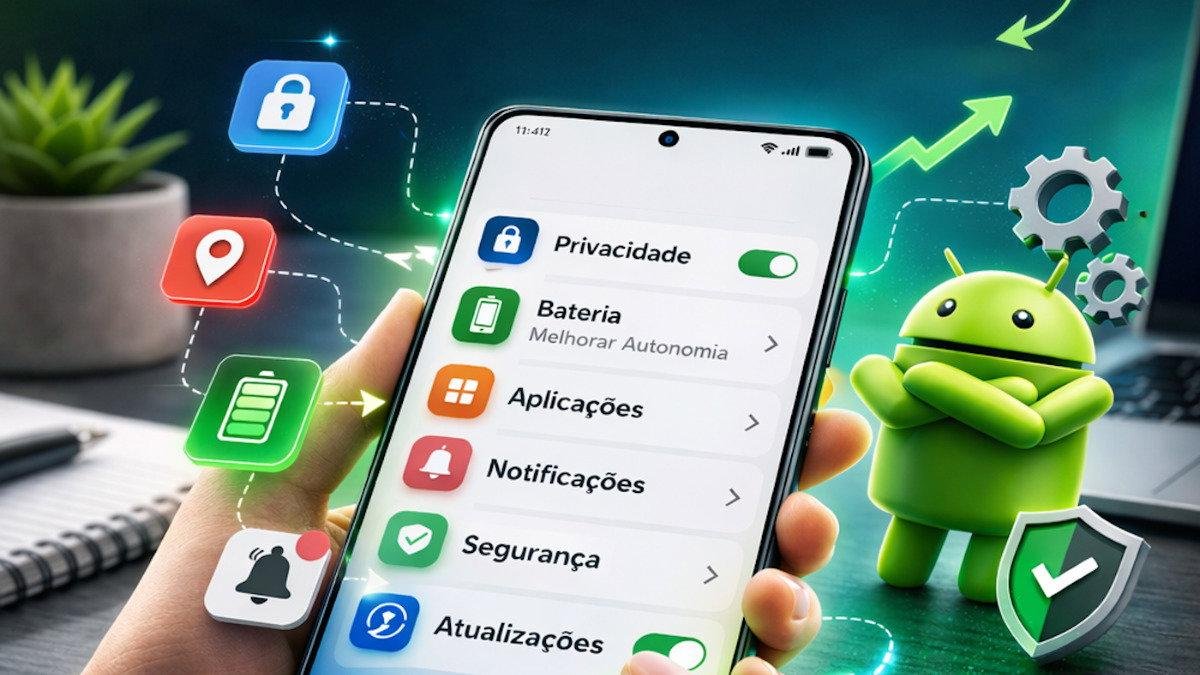
Buying a new Android phone is always exciting. You get a fresh screen, new features, better performance and plenty of apps to explore. But before installing your favourite apps and moving your data, check a few settings.
Some Android settings are designed to protect your personal information, while others help you manage notifications, secure your device and prepare for unexpected situations such as losing your phone.
You do not need to change everything or install additional apps. Most of these options are already available in Android, although their names and locations can differ between Samsung, Google Pixel, Motorola, OnePlus, Xiaomi and other brands.
Here are 10 useful Android settings you should review when setting up a new phone.
1. Set Up a Strong Screen Lock
Your screen lock is the first layer of protection for your phone. Without it, someone who gets physical access to your device may be able to view personal messages, photos, emails and other information.
Android phones generally offer a PIN, password or pattern. Many models also support fingerprint unlocking or face recognition.
What should you do?
- Open your phone’s Settings.
- Go to Security, Security and privacy, or Lock screen.
- Select Screen lock.
- Choose a strong PIN or password.
- Set up fingerprint or face unlocking if your phone supports it.
A longer PIN or password is generally harder to guess than a simple pattern or a date that people might know about you.
Biometric unlocking is convenient, but keep your PIN or password secure because you may need it after restarting your phone or when Android asks you to verify your identity.
2. Turn On Find Hub to Locate a Lost Phone
Losing a smartphone can be stressful, particularly when it contains personal photos, contacts, banking apps and important documents.
Google’s Find Hub can help you locate a compatible lost Android device, play a sound, secure it or erase its data remotely.
It is worth checking that the feature is ready before you actually need it.
How to check the setting:
- Open Settings.
- Search for “Find Hub” or “Find My Device”.
- Open the relevant option under Google or Security.
- Check that device location and finding options are enabled.
- Make sure you are signed in to your Google Account.
You can also visit the Find Hub website from another device:
Important: Remote locating depends on factors such as the phone’s power, network connection, Google Account, location and finding settings. Depending on your device and configuration, some offline finding features may also be available.
Do not wait until your phone is lost to check these settings.
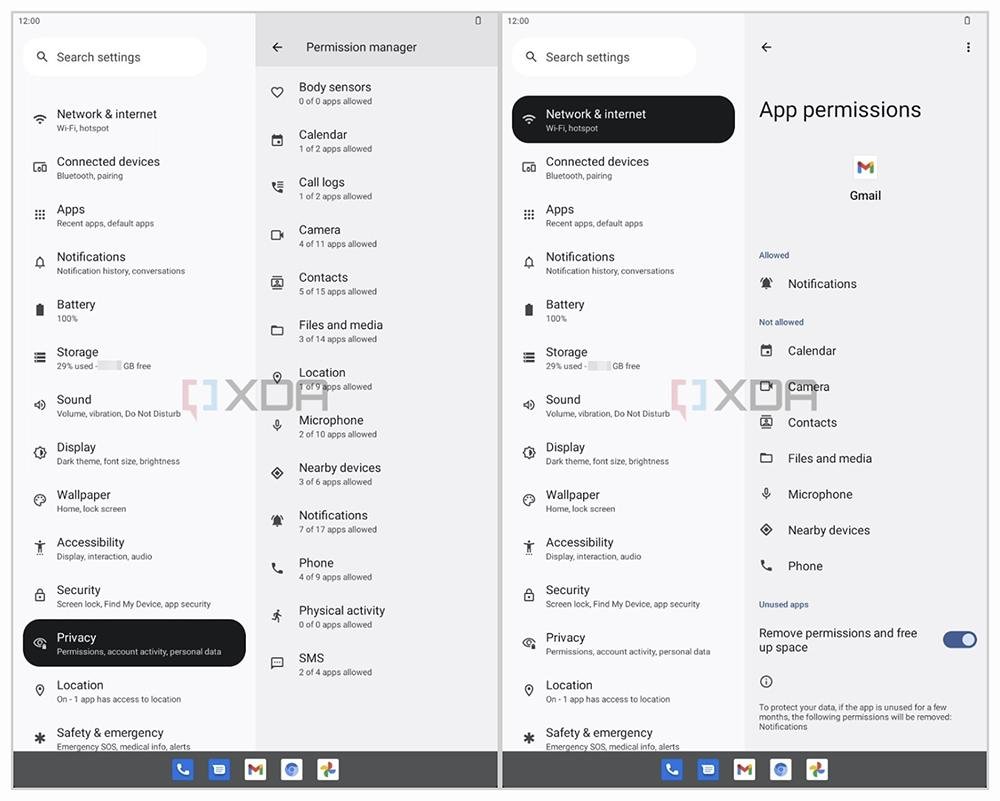
3. Review App Permissions
Have you ever installed an app that asks for access to your contacts, microphone, camera or location even though those features are not essential to its main purpose?
This is why reviewing app permissions is important.
For example, a photo-editing app may need access to selected photos, but it may not need continuous access to your location.
How to review permissions:
- Open Settings.
- Tap Apps.
- Select an installed app.
- Open Permissions.
- Review what the app can access.
- Change permissions that are not necessary.
You may see options such as:
- Allow only while using the app
- Ask every time
- Don’t allow
The available choices depend on the permission and Android version.
Avoid turning off permissions without understanding their purpose. Some apps genuinely need camera, microphone or location access to provide their main features.
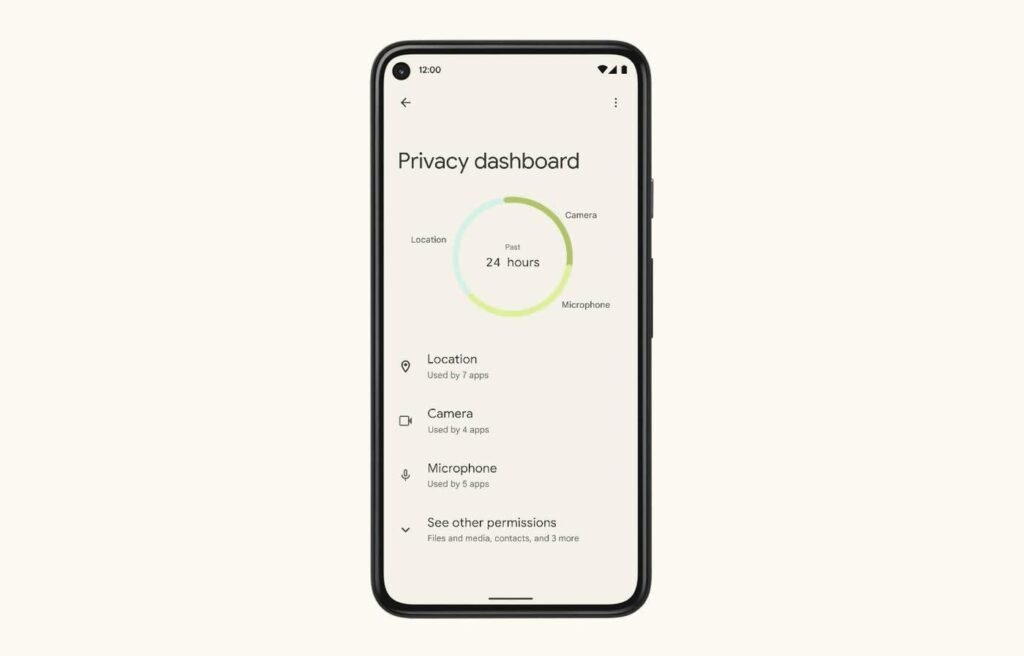
4. Check the Privacy Dashboard
Changing app permissions is useful, but it is also helpful to know which apps have recently accessed sensitive information.
Android’s Privacy Dashboard provides an overview of permission activity. Depending on the Android version, you can review access to information such as location, camera and microphone.
How to find it:
- Open Settings.
- Go to Security and privacy or Privacy.
- Select Privacy Dashboard.
- Choose a permission such as Camera, Microphone or Location.
- Review the apps shown in the activity history.
If you notice an app accessing information it does not reasonably need, open its permission settings and review the access.
This is a useful way to understand how apps use your phone’s sensitive features instead of simply accepting every permission request.
5. Review Camera and Microphone Access
Your phone’s camera and microphone can access sensitive information. Android provides privacy controls that let you manage access to these features.
On supported Android versions, a green indicator appears when an app is actively using the camera or microphone.
You can also use system-level privacy controls on supported devices.
What to check:
- Open Settings.
- Go to Security and privacy or Privacy.
- Find Privacy controls.
- Review Camera access and Microphone access.
- Check the available controls and permissions.
You may also find Camera access and Microphone access buttons in Quick Settings by swiping down from the top of your screen.
Remember that disabling these controls can stop apps such as video calling, camera and voice recording apps from working until access is restored.
6. Manage Unnecessary Notifications
A new phone can quickly become crowded with notifications from shopping apps, games, social media platforms and other services.
Too many alerts can interrupt work, study and personal time. Some notifications may also appear on your lock screen, where other people could see their contents.
Instead of turning off all notifications, decide which apps genuinely need permission to send alerts.
How to manage notifications:
- Open Settings.
- Tap Notifications.
- Open App notifications.
- Review the list of installed apps.
- Disable notifications from apps that do not need to alert you.
You can also check the lock screen notification settings. If your phone offers it, choose to hide sensitive notification content when the device is locked.
Keep alerts enabled for services where timely updates matter, such as calls, important messages and account security notifications.
7. Keep Android and Security Updates Enabled
Software updates are not only about new features or changes to the phone’s appearance. They can also include security fixes, bug corrections and improvements to system stability.
An older software version may miss important fixes that are available in a newer update.
How to check for updates:
- Open Settings.
- Scroll to System or Software update.
- Select Software update or System update.
- Check for available updates.
- Follow the instructions if an update is available.
The exact menu depends on your phone manufacturer.
Also check the Google Play system update option if your device provides it.
Before installing a major update, make sure your phone has sufficient battery power and a reliable internet connection. It is also sensible to back up important information.
8. Check Google Play Protect
Downloading apps from unfamiliar websites or unofficial sources can expose your phone to harmful software.
Google Play Protect helps check apps for potentially harmful behaviour. It can scan apps from Google Play and, depending on device settings, apps from other sources as well.
How to check Play Protect:
- Open the Google Play Store.
- Tap your profile picture.
- Select Play Protect.
- Check the latest scan information.
- Open the settings and review app scanning options.
Keep the available protection enabled unless you have a specific reason to change it.
Play Protect is a useful security layer, but it does not mean every app or website is automatically safe. Download apps from trusted sources and pay attention to the permissions they request.
9. Set Up Google Backup
Your phone contains more than just installed apps. It may also hold contacts, device settings, messages and other information that you would not want to lose.
A backup can make moving to another Android phone or recovering after a device problem easier.
How to check backup settings:
- Open Settings.
- Go to Google.
- Find Backup.
- Review the backup details.
- Turn on the available backup option if appropriate.
- Check which Google Account is being used.
Backup coverage varies by device, Android version, application and account settings. Not every app stores all its data in Google’s device backup.
For important photos and videos, separately check your Google Photos or other photo backup settings. Do not assume that every file on your phone is automatically backed up.
10. Review Lock Screen Privacy
Your lock screen can display message previews, email notifications, calendar alerts and other information.
This is convenient, but it can also reveal private details when your phone is lying on a desk or someone else is nearby.
You can usually control how much notification information appears while the device is locked.
How to review the setting:
- Open Settings.
- Select Notifications or Lock screen.
- Find Lock screen notifications.
- Review the available display options.
- Choose an option that hides sensitive content if privacy is important to you.
On some devices, you can hide sensitive notification details while still showing that a notification has arrived.
This gives you a useful balance between privacy and convenience.
Quick Checklist: Android Settings to Review
Before you finish setting up your new phone, use this checklist:
Set a strong PIN or password
Check Find Hub and device location settings.
Review app permissions.
Check the Privacy Dashboard.
Review camera and microphone access.
Manage unnecessary notifications.
Check Android and security updates.
Review Google Play Protect.
Set up Google Backup.
Hide sensitive lock screen notifications.
Do Android Settings Look Different on Every Phone?
Yes. Android manufacturers often customize the Settings menu. A Google Pixel may use different menu names from a Samsung Galaxy, OnePlus or Xiaomi phone.
For example, a privacy option might appear under Security and privacy on one device and under Privacy on another.
If you cannot find a particular option, open Settings and use the search bar. Search terms such as “app permissions”, “Find Hub”, “notifications” or “backup” can help you locate the relevant menu.
Also remember that some options are available only on certain Android versions or supported devices.
FAQs.
Which Android settings should I change first on a new phone?
Start with a strong screen lock, Find Hub, app permissions, software updates and Google Backup. These settings help prepare your phone for common security, privacy and recovery needs.
Should I turn off all app permissions?
No. Some permissions are necessary for apps to work correctly. Review each permission and allow access only when it makes sense for the app’s purpose.
Does Android automatically protect my phone?
Android includes built-in security features such as app permissions, privacy controls and Google Play Protect. However, users should still install updates, use a secure screen lock and download apps from trusted sources.
How can I find my Android phone if it gets lost?
Use Google’s Find Hub through the app or its website. If your phone meets the required conditions and settings are enabled, you may be able to locate it, play a sound, secure it or erase its data remotely.
Do these settings work on Samsung and Xiaomi phones?
Most of the features discussed are available across many Android phones, but menu names and exact steps can vary. Search for the setting directly from your phone’s Settings app if the instructions do not match your screen.
Conclusion:
Setting up a new Android phone is about more than choosing a wallpaper and installing your favourite apps. A few minutes spent reviewing privacy, security, notifications and backup settings can help you avoid unnecessary problems later.
You do not need to change every option available on your phone. Focus on the settings that matter to the way you use your device, and review them again whenever you install new apps or receive a major software update.
A well-configured phone is easier to manage, more private and better prepared for everyday use.
Editorial note: Android menu names and feature availability vary by manufacturer, model and software version. Check your device’s official support information if a setting is unavailable.