

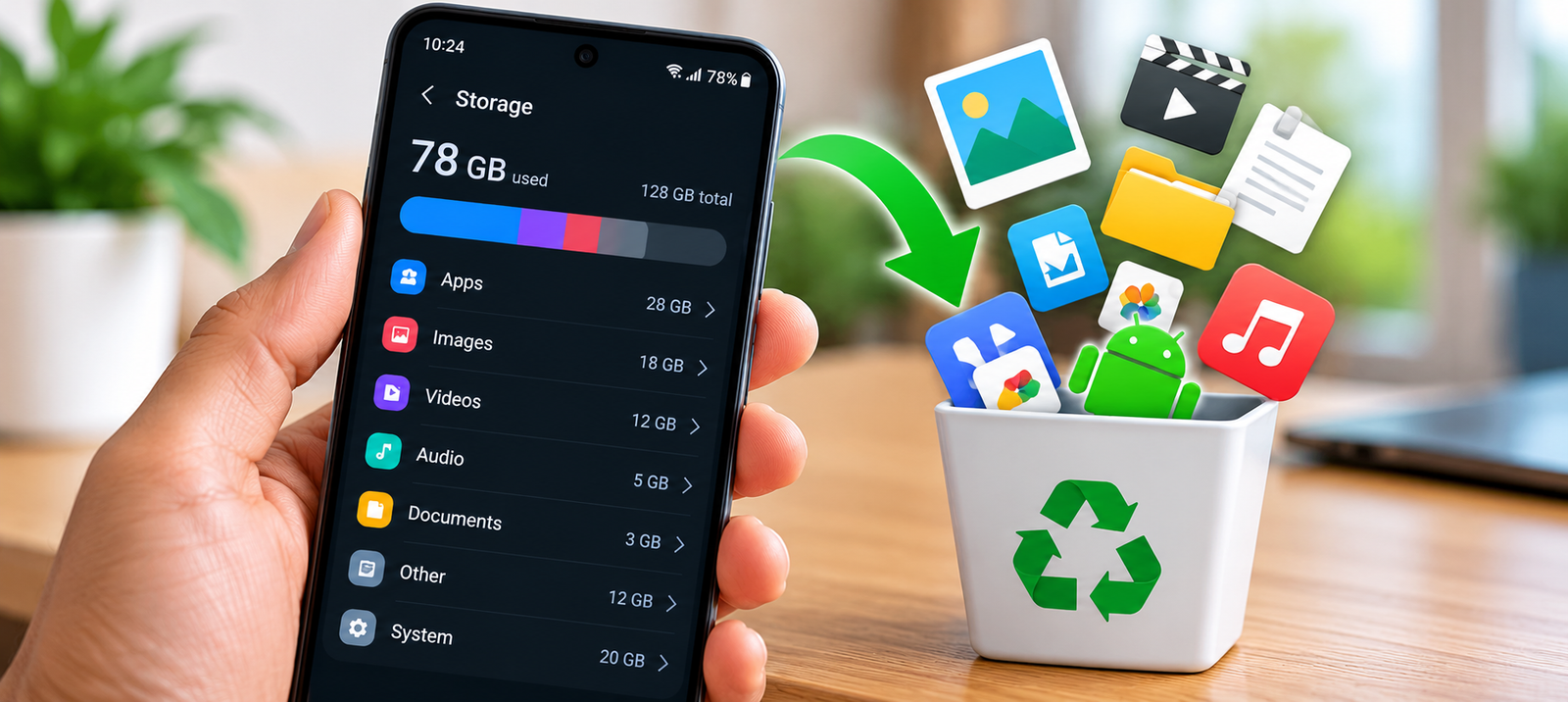
Is your Android phone constantly showing a “Storage space running out” warning? Are you unable to download apps, take new photos or install updates because your storage is almost full?
Before deleting your photos, videos or important documents, take a few minutes to understand what is using your phone’s storage. In many cases, you can recover space by removing unnecessary downloads, clearing temporary app files, reviewing large videos and uninstalling apps you no longer use.
The important thing is to clean your phone carefully. Deleting the wrong files or assuming that everything backed up to the cloud is safe can lead to losing data you wanted to keep.
In this guide, you will learn how to free up storage on Android without losing important files, how to identify storage-heavy apps and what to check before removing anything.
Why Is Your Android Phone Storage Full?
Android storage can fill up for several reasons. Photos and videos may occupy a large amount of space, messaging apps can accumulate media, and downloaded files may remain on your phone long after you stop using them.
Here are some common causes:
| Storage problem | What you should check |
|---|---|
| Too many photos and videos | Large videos, duplicate images and backed-up media |
| Apps using too much space | App size, downloaded content and cache |
| Downloads folder is full | Old PDFs, ZIP files, videos and installers |
| Messaging apps storing media | Forwarded videos, documents and images |
| Offline content | Downloaded music, maps, movies and podcasts |
| System and app data | Storage breakdown in Android Settings |
The exact storage breakdown depends on your phone model, Android version and installed apps.
#1. Check What Is Taking Up Storage
Start by identifying where your storage is going instead of deleting files randomly.
- Open Settings on your Android phone.
- Find Storage, Device care, or a similarly named option.
- Review the categories shown on the screen.
- Check how much space is used by apps, images, videos, downloads and other files.
- Open the largest categories to investigate what can safely be removed.
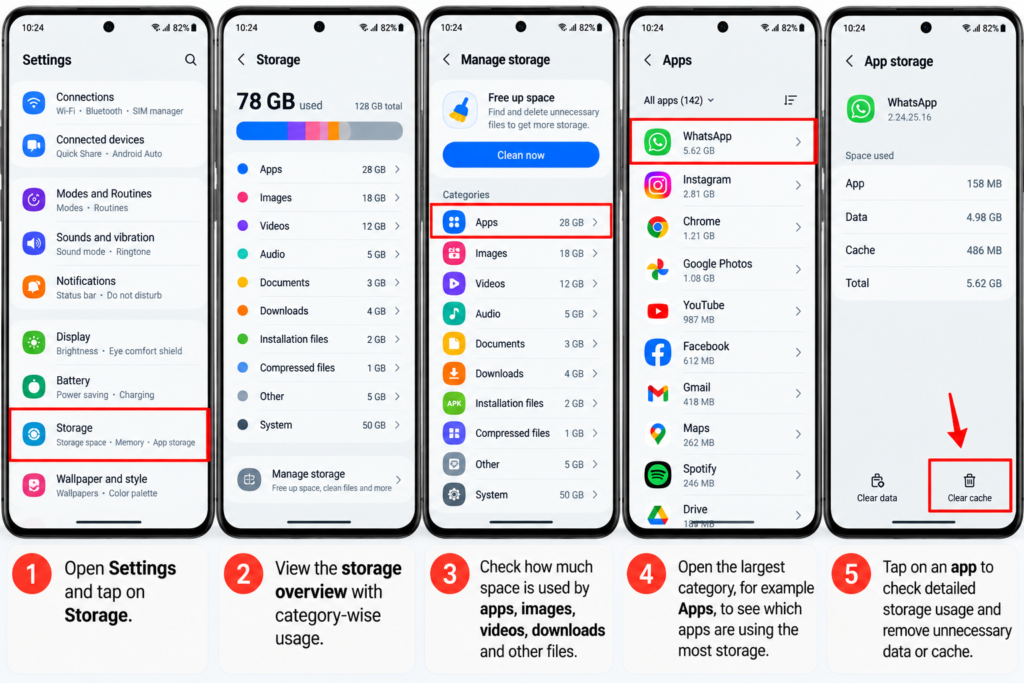
Samsung Galaxy, Google Pixel, Xiaomi, OnePlus and other Android phones may use different menu names.
For example, if videos occupy most of your storage, deleting unused apps may make little difference. On the other hand, if a few apps consume several gigabytes, reviewing their downloads and stored data may be more effective.
Tip: Note your available storage before making changes. After cleaning, check again to see how much space you recovered.
#2. Use Google Files to Find Unnecessary Files
Google’s Files app, where available, can help you browse files and identify items that may be suitable for deletion.
To use it:
- Open Files by Google or your phone’s built-in file manager.
- Review any available cleanup suggestions.
- Look for old downloads, large files and items you no longer need.
- Open the suggested files before deleting them.
- Select only the items you are sure you can remove.
Cleanup recommendations vary by app version and device. Do not assume every suggested item is unnecessary.
For example, an old video might be taking up significant space but could still be important to you. Review it before deleting it.
Avoid installing unknown cleaning apps that request broad access to your files or promise unrealistic storage improvements. Built-in storage tools are a good place to start.
#3. Clear App Cache Without Deleting Your Personal Data
Apps store temporary files called cache to help content load more quickly. Over time, some apps can accumulate a substantial amount of cached data.
You can review an app’s cache through Android Settings:
- Open Settings → Apps.
- Select an app that uses a lot of storage.
- Open Storage or Storage and cache.
- Review the amount of space used by the cache.
- Select Clear cache, if available.
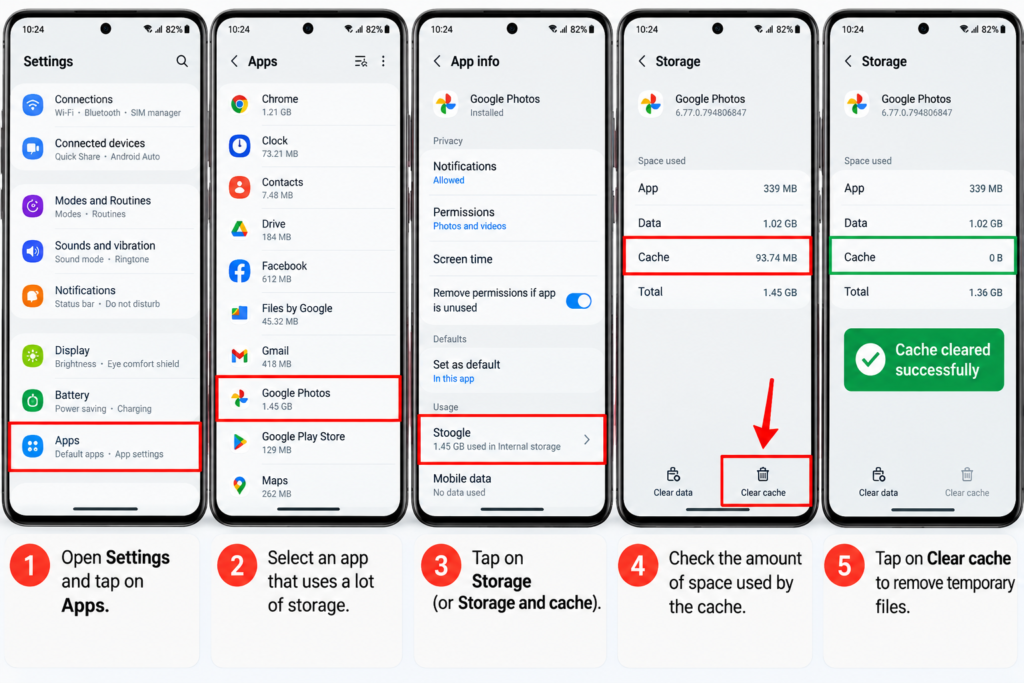
Menu names vary by device.
Clearing cache is generally less disruptive than clearing app data. However, some temporary content may need to download again the next time you use the app.
Important difference:
- Clear cache: Removes temporary files.
- Clear storage or Clear data: Can remove app settings, local files, saved sessions and other information.
Do not select Clear data unless you understand what will be removed and have backed up anything important.
4. Remove Old Downloads You No Longer Need
Your Downloads folder may contain files you downloaded months ago and have completely forgotten about.
These could include:
- Old PDF documents
- Duplicate images
- ZIP archives
- Installation files
- Videos saved from websites
- Documents already stored safely elsewhere
Open your file manager and navigate to Downloads. Sort files by size or date if that option is available.
Review large files first because removing one unnecessary video or archive may recover more space than deleting several small documents.
Before deleting a document, confirm that you have another copy if you might need it later. Do not delete unfamiliar files simply because their names look technical.
5. Back Up Photos and Videos Before Removing Them
Photos and videos can consume a considerable amount of storage, particularly if you record high-resolution videos.
Before deleting anything, decide whether you want to keep a copy.
You have several options:
- Back up photos to a cloud service that supports your needs.
- Transfer important files to a computer.
- Copy them to an external drive or supported storage device.
- Keep essential files in more than one location if they are irreplaceable.
If you use Google Photos or another cloud backup service, check that the backup has actually completed. Open the service and verify that important photos and videos are accessible.
Remember that cloud backup and cloud synchronization are not always the same thing. Deleting a synced file through one app may also remove it from other connected locations.
Only use a storage-clearing feature such as “Free up space” after confirming what it removes and that your backed-up copies are available.
6. Delete Large Videos and Duplicate Files Carefully
A few large videos can use more space than hundreds of ordinary photos.
Open your gallery or file manager and look for options to sort media by size. If sorting is unavailable, browse recent recordings and downloaded videos manually.
Ask yourself:
- Do I still need this video?
- Is another copy already available?
- Has it been backed up successfully?
- Is it an important personal or work recording?
Delete only files you have reviewed.
Be cautious with duplicate-file suggestions. Two files can have similar names while containing different information. Preview them before deciding which copy to remove.
7. Uninstall Apps You No Longer Use
Unused apps can occupy storage even when you rarely open them. Some also store offline files and additional data.
To review your apps:
- Open Settings.
- Select Apps or Manage apps.
- Review the installed apps and their storage usage.
- Identify apps you no longer need.
- Uninstall only those you recognize and are comfortable removing.
Before uninstalling an app, check whether it stores important information locally. Notes, recordings, downloaded documents and game progress may not be backed up automatically.
Avoid removing unfamiliar system apps. Some are required for normal phone functions, security or manufacturer features.
If an app offers an option to remove downloaded content while keeping the app installed, that may be a better choice.
8. Review WhatsApp and Other Messaging App Media
Messaging apps can accumulate photos, videos, voice messages and documents over time.
If you use WhatsApp, its storage management screen can help you identify large files and review media taking up space. The exact steps may vary by app version.
Before removing anything:
- Open the app’s storage management section.
- Review large files and media categories.
- Preview the files.
- Save important documents or photos elsewhere if needed.
- Delete only the items you no longer need.
Be particularly careful with work documents, family photos and files shared in important conversations.
Deleting media from a messaging app may not remove copies saved elsewhere, but you should never assume that another copy exists without checking.
9. Remove Offline Downloads From Streaming Apps
Streaming and navigation apps often let you download content for offline use.
Examples include:
- Downloaded music
- Offline movies and episodes
- Saved maps
- Podcast episodes
- Downloaded language lessons
Open the relevant app and review its downloaded content. Remove items you no longer need or can easily download again.
This approach can be useful because you may free up space without uninstalling the app or deleting personal photos.
Keep in mind that removing a downloaded item usually means you will need an internet connection to access it again.
10. Move Files to a Computer or External Storage
If you frequently work with photos, videos or documents, moving files off your phone may be more useful than repeatedly deleting content.
Depending on your device, you may be able to transfer files using:
- A USB cable and computer
- A compatible external storage device
- A supported memory card
- A trusted cloud storage service
After transferring files, open them at the destination to confirm that the copies work.
Do not erase the original files until you have verified the transfer. If the files are important, consider keeping a second backup.
Also check whether your phone supports the external storage device you intend to use.
11. Understand What “System” and “Other” Storage Mean
Some Android phones show large categories called System, Other or Miscellaneous.
These categories can include operating system files, app data, temporary files and information that the storage screen cannot easily classify.
You should not try to remove system files manually just to reduce the displayed number.
Instead:
- Review app storage and cache first.
- Restart the phone if the storage display seems inconsistent.
- Install relevant system updates when appropriate.
- Use your phone manufacturer’s storage-management tools.
- Seek device-specific support if storage appears unusually large and the cause remains unclear.
System storage requirements vary by phone and software version. A large system category does not automatically mean something is wrong.
12. Restart Your Phone and Check Storage Again
After removing unnecessary files, restart your phone if appropriate and revisit the Storage screen.
Check the amount of available space and confirm that your essential apps and files still work.
Sometimes storage figures take a little time to update. If the available space has not changed much, review which files were actually deleted and whether they remain in a Trash or Recently Deleted folder.
Some gallery and file-manager apps keep deleted items temporarily. If you want to recover the space, review that folder carefully before permanently removing anything.
Remember that permanently emptying a trash folder can make recovery much harder or impossible.
Common Mistakes to Avoid When Cleaning Android Storage
Deleting files without checking them: Review unfamiliar documents and media before removing them.
Confusing cache with app data: Clearing app data can affect saved settings, local files and login sessions.
Assuming every cloud file is backed up: Verify backup completion and confirm that important files are accessible.
Using unknown cleaner apps: Avoid tools that request unnecessary permissions or make unrealistic promises.
Deleting system files: Do not manually remove files whose purpose you do not understand.
Emptying Trash too quickly: Make sure you no longer need the files before permanently deleting them.
Frequently Asked Questions
Q1. How can I free up Android storage without deleting photos?
Start by checking app storage, removing old downloads, clearing unnecessary app cache, uninstalling unused apps and deleting offline media you can download again. These steps may recover space without removing personal photos.
Q2. Is it safe to clear cache on Android?
Clearing an app’s cache is generally a low-risk way to remove temporary files. The app may need to reload some content afterward. Avoid confusing Clear cache with Clear data or Clear storage.
Q3. Why is my Android storage still full after deleting files?
Deleted files may remain in a Trash or Recently Deleted folder. Other large apps, downloaded media or system files may also be using space. Review the storage breakdown again to identify the remaining cause.
Q4. Does deleting an app also delete its data?
It can remove local app data, depending on the app and how its information is stored. Before uninstalling, check whether important files, settings or progress are backed up.
Q5. Can I use an SD card to increase Android storage?
Some Android phones support expandable storage, while others do not. Check your device specifications and compatibility before purchasing a memory card. Moving files to a card does not necessarily increase the space available for every app.
Q6. How much free storage should I keep on my Android phone?
There is no single amount that suits every phone. Keeping a reasonable amount of free space helps you download files, install updates and use apps without constant storage warnings. Your needs depend on the device’s capacity and how you use it.
Final Thoughts
Learning how to free up storage on Android does not require deleting everything on your phone. Start by checking which categories use the most space, review large downloads and videos, clear unnecessary app cache, and remove offline content you no longer need.
For important photos and documents, verify your backup before deleting the original copy. A careful cleanup can help you recover useful space while keeping the files that matter to you.
If your storage remains almost full after these steps, investigate app data and system storage rather than deleting unfamiliar files at random. The safest solution is the one that frees space without putting your personal information at risk.