

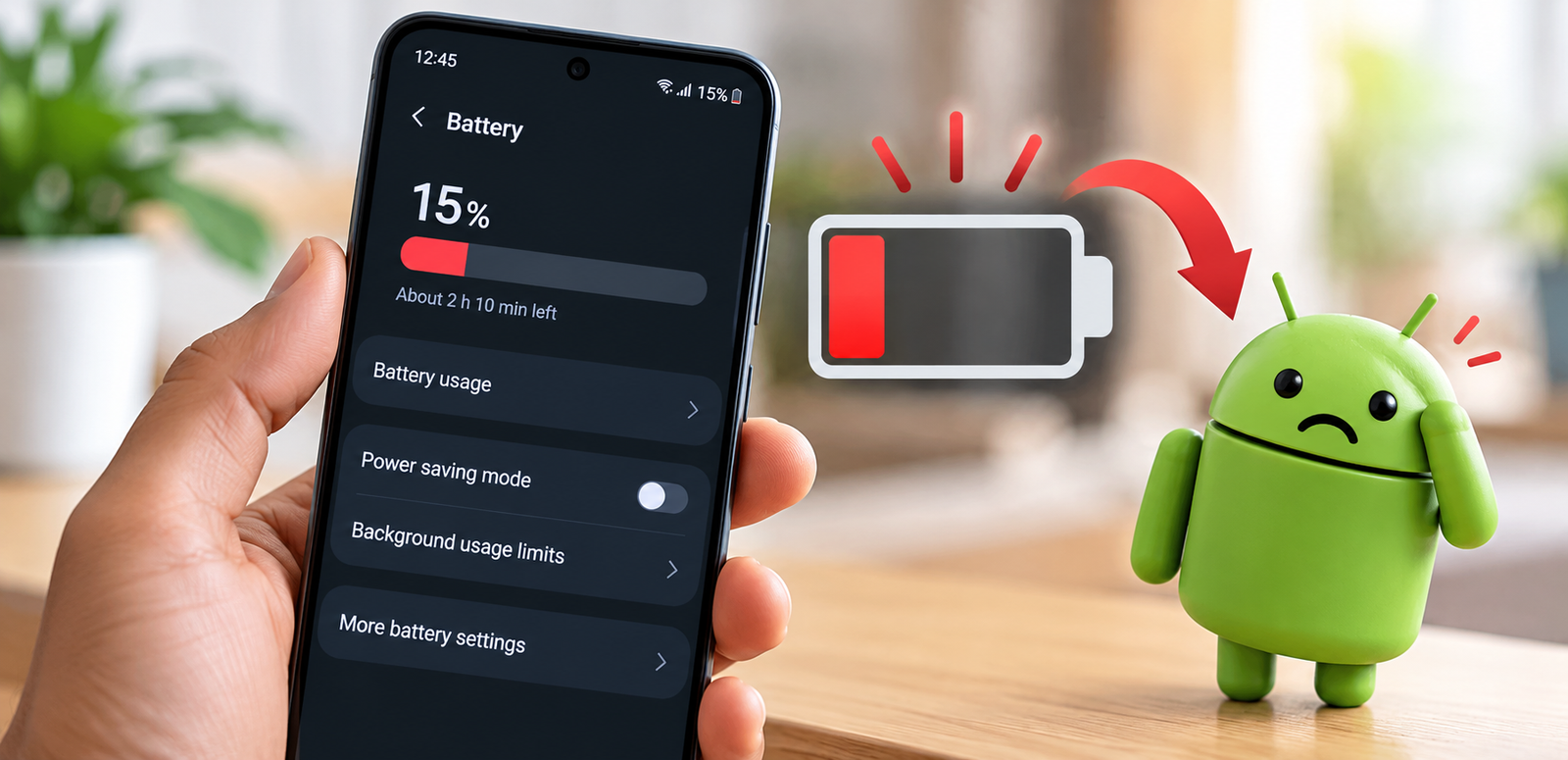
Is your Android phone losing battery faster than usual, even when you are not using it much? You might start the day with a full charge and find yourself searching for a charger before the evening. This can be frustrating, especially when you rely on your phone for calls, navigation, work, photos, and everyday tasks.
Fast battery drain does not always mean your battery is damaged. Sometimes, an app keeps running in the background, your screen uses too much power, or your phone struggles with a weak mobile signal. A recent software update can also temporarily affect battery life.
The good news is that you can investigate most common causes without installing a battery-saving app or resetting your phone.
In this guide, you will learn how to fix Android phone battery draining fast, identify apps that consume too much power, adjust useful settings, and recognize when your battery may need professional attention.
Why Is Your Android Phone Battery Draining So Fast?
Before changing settings, try to understand what is causing the problem. Different causes require different solutions, and changing everything at once can make troubleshooting harder.
| Possible cause | What you may notice | What to check |
|---|---|---|
| Background apps | Battery drops while the phone is idle | Battery usage by app |
| High screen brightness | Battery falls quickly during screen use | Brightness and screen timeout |
| Weak mobile signal | Battery drains faster in certain locations | Signal strength and network settings |
| GPS and location use | High consumption while using navigation or location-based apps | Location permissions |
| Recent software update | Phone runs warm or drains faster after updating | Battery usage and pending updates |
| Battery ageing | Shorter runtime, unexpected shutdowns or inconsistent readings | Battery health, if available |
These are possible causes, not proof that a particular component is faulty. Start with the checks below to narrow down the problem.
Read More: Android tips and tricks
#1. Check Which Apps Are Using Your Battery
This is one of the most useful first steps because it helps you find out whether an app is consuming an unusual amount of power.
On many Android phones:
- Open Settings.
- Select Battery or Battery usage.
- Review the battery consumption breakdown.
- Look for apps using more power than you would expect based on how much you use them.
- Select an app to review its battery activity and available background-use options.
The exact menu names vary between Samsung Galaxy, Google Pixel, Xiaomi, OnePlus and other Android devices.
An app appearing near the top of the list is not automatically a problem. A navigation app, video app or game can legitimately consume a lot of power when used for a long time.
Pay closer attention to apps that use substantial battery in the background without a clear reason.
What to do: Update the app, review its background activity, or uninstall it if you no longer need it. Avoid restricting essential apps if doing so would interfere with notifications, calls or other important functions.
#2. Restrict Unnecessary Background Activity
Some apps perform tasks when you are not actively using them. Depending on the app, these activities may include syncing information, refreshing content, checking for updates or maintaining location services.
To investigate:
- Open Settings and find the relevant app under Apps.
- Open its battery settings.
- Review whether background usage can be restricted.
- Choose a more restrictive option if the app does not need to run continuously.
Android and manufacturers use different names for these controls. Some phones offer optimized, restricted or background-usage options.
Be careful with messaging apps, email, navigation and work apps. Restricting them aggressively may delay notifications or stop some background functions.
You do not need to restrict every app. Focus on those that consume excessive power without providing a useful service.
#3. Reduce Screen Brightness and Screen Timeout
The display can be a major source of battery consumption, particularly when you use your phone for videos, games, reading or social media.
Try these adjustments:
- Enable adaptive brightness if it works well for you.
- Reduce brightness manually when you are indoors.
- Set the screen timeout to a shorter interval, such as 30 seconds.
- Avoid leaving the display on when you are not using the phone.
- If your phone has an always-on display, test whether disabling or adjusting it improves battery life.
A bright display does not necessarily indicate a problem. It simply uses more power under many conditions.
Practical tip: If your phone loses battery mainly while you are actively using it, screen settings may help more than restricting background apps.
#4. Turn On Battery Saver When You Need It
Battery Saver or Power Saving mode can reduce energy consumption by limiting selected background activities, performance or other features.
To enable it, open Settings and look under Battery for Battery Saver, Power Saving or a similar option. You can also check your phone’s Quick Settings panel.
Battery Saver is useful when you are away from a charger or need your phone to last until the end of the day.
However, some phones may delay background syncing, reduce performance or limit certain functions while this mode is active.
You do not have to keep Battery Saver enabled all the time. Use it when the extra runtime is more important than having every background feature operate normally.
#5. Check Whether Your Mobile Signal Is Weak
Your phone may use more power when it struggles to maintain a connection to a mobile network. This can happen in basements, remote areas, large buildings or places with poor coverage.
If you notice that battery drain is worse in a particular location, check your signal strength.
You can try the following:
- Move to an area with better reception.
- Use trusted Wi-Fi when available.
- Avoid repeatedly switching network settings without a clear reason.
- If you do not need mobile connectivity in an area with no coverage, consider Airplane mode.
Airplane mode disables cellular connectivity and may also affect other wireless connections, depending on your settings. You can usually turn Wi-Fi or Bluetooth back on separately when needed.
If the battery drains rapidly everywhere, weak signal may not be the main cause.
#6. Review Location Permissions
Location services are useful for navigation, weather, transport and finding nearby places. However, an app that accesses location frequently may contribute to battery drain.
To review location access:
- Open Settings.
- Go to Location or Permissions.
- Open the app’s location permission.
- Decide whether it needs location all the time, only while in use, or not at all.
Menu names vary by Android version and device.
For an app that does not need continuous tracking, choose a less permissive setting where available. Keep location access enabled for apps that genuinely require it, such as navigation when you are travelling.
You should not disable location for every app just to save battery. The aim is to match permissions to how you use each app.
#7. Check for Apps That Keep Your Phone Awake
If your phone loses a noticeable amount of charge while sitting unused, an app or system process may be preventing it from resting properly.
Start by checking battery usage and recent app activity. Think about whether the problem began after installing a new app or changing a setting.
Useful troubleshooting steps include:
- Update the suspected app.
- Close a stuck app and see whether the problem returns.
- Restart your phone.
- Remove an app you no longer trust or use.
- Check whether a known app issue has been addressed in an update.
Do not assume that every background process is harmful. Android needs some background activity for notifications, security and synchronization.
If the battery continues to drain unusually fast while idle, note how much charge is lost over a consistent period and whether the phone becomes warm.
#8. Restart Your Phone and Install Relevant Updates
A temporary software problem can sometimes affect battery performance. Restarting your phone is a simple way to clear some temporary issues.
You should also check for updates to Android and the apps you use.
To check for an Android update, open Settings and look for System update, Software update or the equivalent option for your manufacturer.
Before installing a major update:
- Charge your phone sufficiently.
- Use a reliable Wi-Fi connection.
- Back up important information when appropriate.
- Allow the device time to finish any post-update tasks.
Battery consumption may temporarily increase after a major update while the phone completes background processing. If the problem continues well beyond the initial update period, review battery usage again.
Do not repeatedly install updates or reset the phone in the hope of fixing a problem without first checking what is consuming power.
#9. Check Battery Health and Age
Rechargeable batteries gradually lose capacity over time. As a battery ages, the phone may not last as long between charges as it did when new.
Possible warning signs include:
- Noticeably shorter battery runtime than before.
- Unexpected shutdowns despite a remaining charge.
- Battery percentage changes that seem inconsistent.
- A device that becomes unusually warm during normal use.
Some phones provide battery health or battery diagnostics in Settings. Others offer limited information or require the manufacturer’s diagnostic tool.
Do not confuse battery usage with battery health. Battery usage shows how power is being consumed; battery health concerns the battery’s condition and remaining capacity.
If the battery is old or the phone repeatedly shuts down unexpectedly, arrange an assessment through a qualified repair service.
Safety note: If the phone or battery is swollen, the screen or back cover is lifting, or the device becomes dangerously hot, stop using and charging it and seek professional assistance. Do not attempt to puncture or press a swollen battery.
#10. Manage Widgets, Live Wallpapers and Display Effects
Animated wallpapers, frequently updating widgets and certain display features may consume additional power. Their impact varies by phone and usage.
If battery life is poor, test a simpler setup:
- Replace a live wallpaper with a static image.
- Remove widgets you do not use.
- Reduce unnecessary animations if your phone provides that option.
- Test whether always-on display settings make a noticeable difference.
Change one feature at a time and observe the result. This makes it easier to determine whether a setting actually helps on your device.
You do not need to remove every widget or disable every visual feature. Keep the ones you find useful.
11. Avoid Unnecessary Battery-Saving Apps
You generally do not need to install a separate battery-saver app to manage Android battery consumption.
Be cautious of apps that promise dramatic battery improvements, automatically close every background app or demand broad permissions without a clear reason. Some can add their own background activity rather than solve the underlying problem.
Android already includes battery usage reports and power-management features. Your phone manufacturer may also provide built-in diagnostics.
If you suspect a particular app is causing the problem, investigate that app directly instead of installing several additional tools.
12. What to Do If Your Battery Still Drains Quickly
If you have tried the relevant steps and the battery continues to drain, use this troubleshooting sequence.
Case 1: Battery drops mainly during screen use
Check brightness, screen timeout, gaming, video playback and other demanding activities.
Case 2: Battery drops while the phone is idle
Review background battery usage, recently installed apps, signal strength and location access.
Case 3: Battery drain started after an update
Restart the phone, update apps and allow any temporary post-update activity to settle. Investigate further if the problem persists.
Case 4: The phone shuts down unexpectedly or gets unusually hot
Stop intensive use and check for safety concerns. If the problem continues, seek professional diagnostics.
Case 5: Battery life has gradually become worse over months or years
Battery ageing may be responsible. Check battery health if available and consider a professional battery assessment.
Frequently Asked Questions
Q1. Why is my Android battery draining even when I am not using my phone?
Background apps, poor mobile reception, location services, syncing and software issues can contribute to idle battery drain. Check the battery usage report first to identify likely causes.
Q2. Does closing all apps save battery?
Not necessarily. Android manages many background processes automatically. Repeatedly closing every app is not a reliable battery-saving strategy. Focus on apps that show unusually high background consumption.
Q3. Should I keep Battery Saver on all the time?
You can, if you are comfortable with the possible limitations. Depending on your phone, Battery Saver may restrict background activity, performance or syncing. Use it according to your needs.
Q4. Does charging overnight damage an Android battery?
Modern phones include charging-management features, but behaviour varies by device. Heat and prolonged exposure to high charge levels can contribute to battery ageing. Use a compatible charger and any battery-protection or optimized-charging feature your phone provides.
Q5. How do I know if my Android battery needs replacing?
Shorter runtime, unexpected shutdowns and poor battery-health results may indicate deterioration. These signs are not conclusive on their own, so seek a professional assessment if the problem is significant.
Q6. Will a factory reset fix battery drain?
A factory reset can sometimes help with persistent software problems, but it erases data and does not repair a worn-out battery or weak network coverage. Try less disruptive troubleshooting first and back up your data before considering a reset.
Final Thoughts
If your Android phone battery is draining fast, start by checking battery usage rather than changing every setting at once. Review apps that consume excessive power, adjust display settings, check mobile reception and install relevant updates.
If the problem continues, look for signs of battery ageing or a hardware issue. A methodical approach can help you identify the cause without installing unnecessary apps or resetting your phone prematurely.
The best solution depends on your phone model, Android version and usage habits. Make one or two relevant changes at a time and compare battery behaviour under similar conditions.